Module - Execute Tasks
Feature Introduction
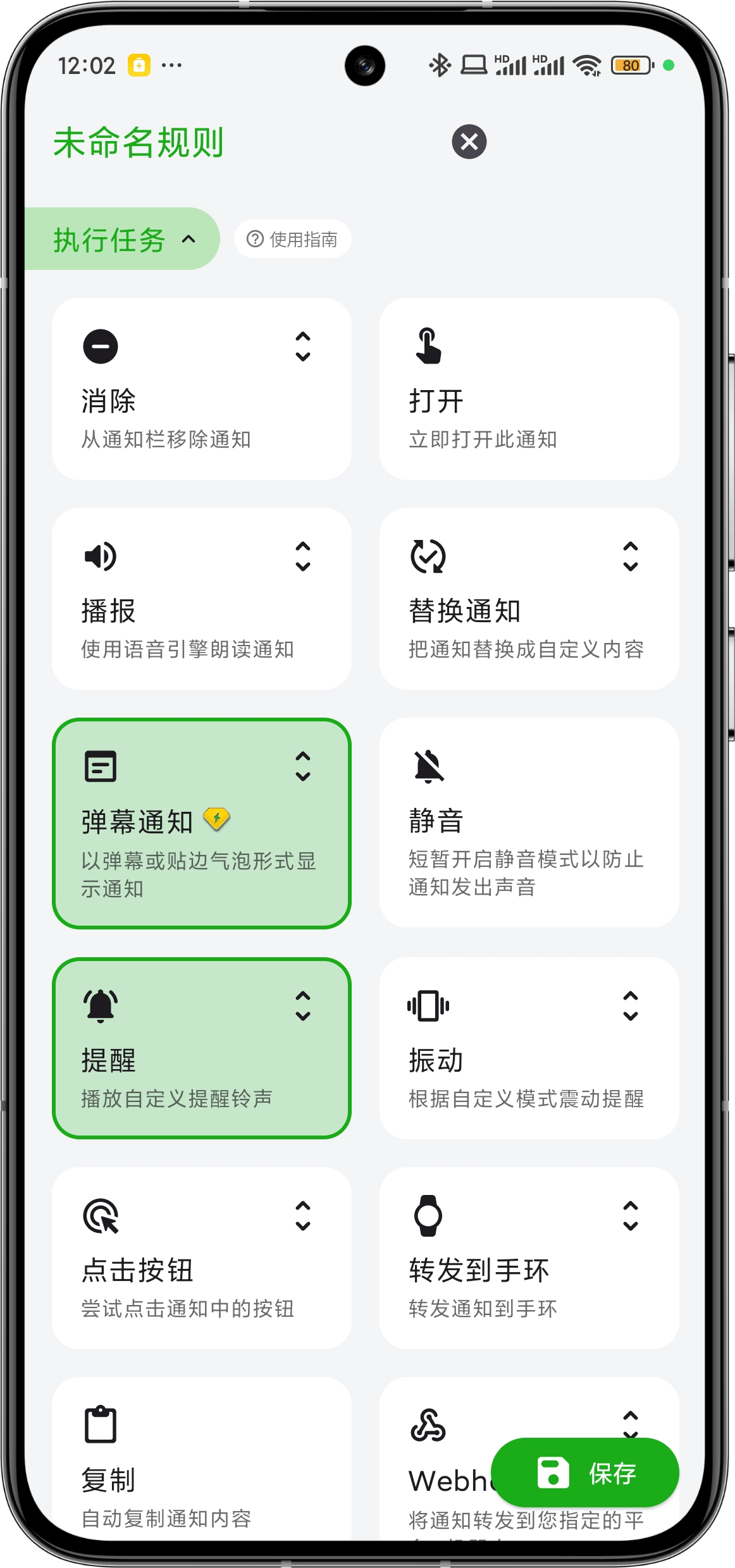
When a notification meets the requirements of Module - Match Conditions and Module - Effective Scenes, it can automatically execute certain tasks. You can set the tasks you want to execute in this module.
"OneNotify APP" currently supports 15 types of tasks including Bullet Screen Notification, Clear Notification, Open Notification, Announce Notification, Replace Notification, Mute, Alert, Vibrate, Click Button, Forward to Wearable, Copy, SMS Reply, SMS Forward, Email Forward, Webhook.
Task Introduction
Bullet Screen Notification (Premium Feature)
This is a Yuque video card, click the link to view: Screenrecorder-2024-11-10-18-31-01-153.mp4 This feature supports displaying notifications as edge-aligned or scrolling bullet screens on the desktop. For WeChat notifications, it also supports quick reply in a small window. See the App for details.
Webhook (Premium Feature)
Use Webhook to forward notifications to your configured bot/platform. For example, Slack, Enterprise WeChat, Feishu, etc. You can use Keywords to extract notification content.
Clear Notification
Automatically clear notifications from the notification bar, including not only general notifications but also download progress bars, music playback service status, and other persistent notifications.
Open Notification
Immediately open this notification. For example, when receiving important WeChat or QQ messages, it can simulate clicking the notification to immediately jump to the corresponding contact or group chat.
Announce Notification
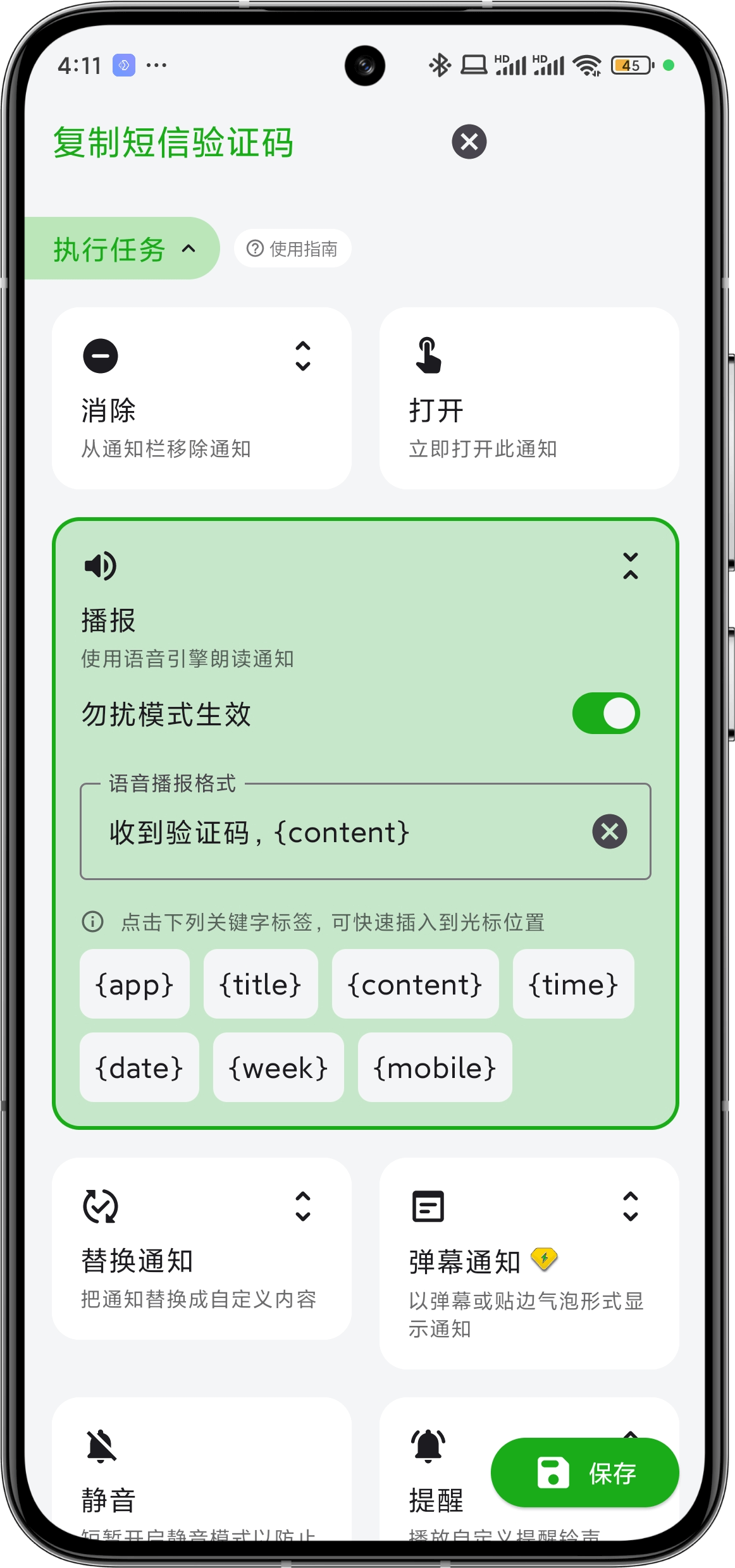
Use TTS service to read notification content. You can customize the voice announcement format. As shown in the image, setting the announcement format to "Received verification code, Keywords" will make TTS automatically read out the verification code when received.
Replace Notification
Clear the original notification and immediately replace it according to the replacement format. You can use Keywords to customize the notification title and content and redisplay it in the notification bar.
Mute
Briefly enable silent mode to prevent notifications from making sounds. For example, you can silence unimportant WeChat notifications to avoid being disturbed.
Alert
Can play custom ringtones or music. When the Effective in Do Not Disturb Mode switch is turned on, it can still alert even when the phone is in Do Not Disturb mode. You can use this feature to set different alert tones for specially focused people/WeChat friends/work groups.
Vibrate
Customize vibration patterns, you can set up to 30 seconds of vibration alerts, flexibly set vibration frequency, making it easy to distinguish notification sources even when the phone is in your pocket.
Click Button
Simulate automatically clicking buttons on notifications, such as read, delete, reply, etc.
Forward to Wearable
This feature requires a wearable client to implement. It works by pushing notifications to the notification bar, which are then forwarded to the wearable device by the wearable client's forwarding feature. See Tutorial - Forward to Wearable for specific usage.
Copy
Automatically copy the notification content edited through Module - Notification Edit to the clipboard. If no edit operation is set, it will copy the entire notification content.
SMS Reply
Generally, SMS notification titles are phone numbers. This feature will attempt to send SMS to the number in the notification title. So if the notification is not from SMS, or the notification title is not a valid phone number, the reply will fail. If you need to reply to a specific number, please use SMS Forward.
SMS Forward
Attempt to forward the notification to specified numbers. Please carefully verify that your set forwarding destination numbers are trustworthy to avoid unnecessary losses.
Email Forward
Attempt to forward the notification to specified email addresses, multiple email addresses can be set. Please carefully verify that your set forwarding destination email addresses are trustworthy to avoid unnecessary losses.