Tutorial - Using Text Matching for Notifications
I. Overview
OneNotify is a powerful notification management tool that can automatically match and process phone notifications based on user-defined rules. This tutorial will detail how to use the text matching feature to customize notification handling.
II. Preparation
Download and Install OneNotify APP: If you haven't installed OneNotify yet, please download and install it from the app store.
Register and Log in (Optional): Some tasks may require VIP membership to execute, non-VIP features can be used without logging in.
III. Create Text Matching Rules
Example
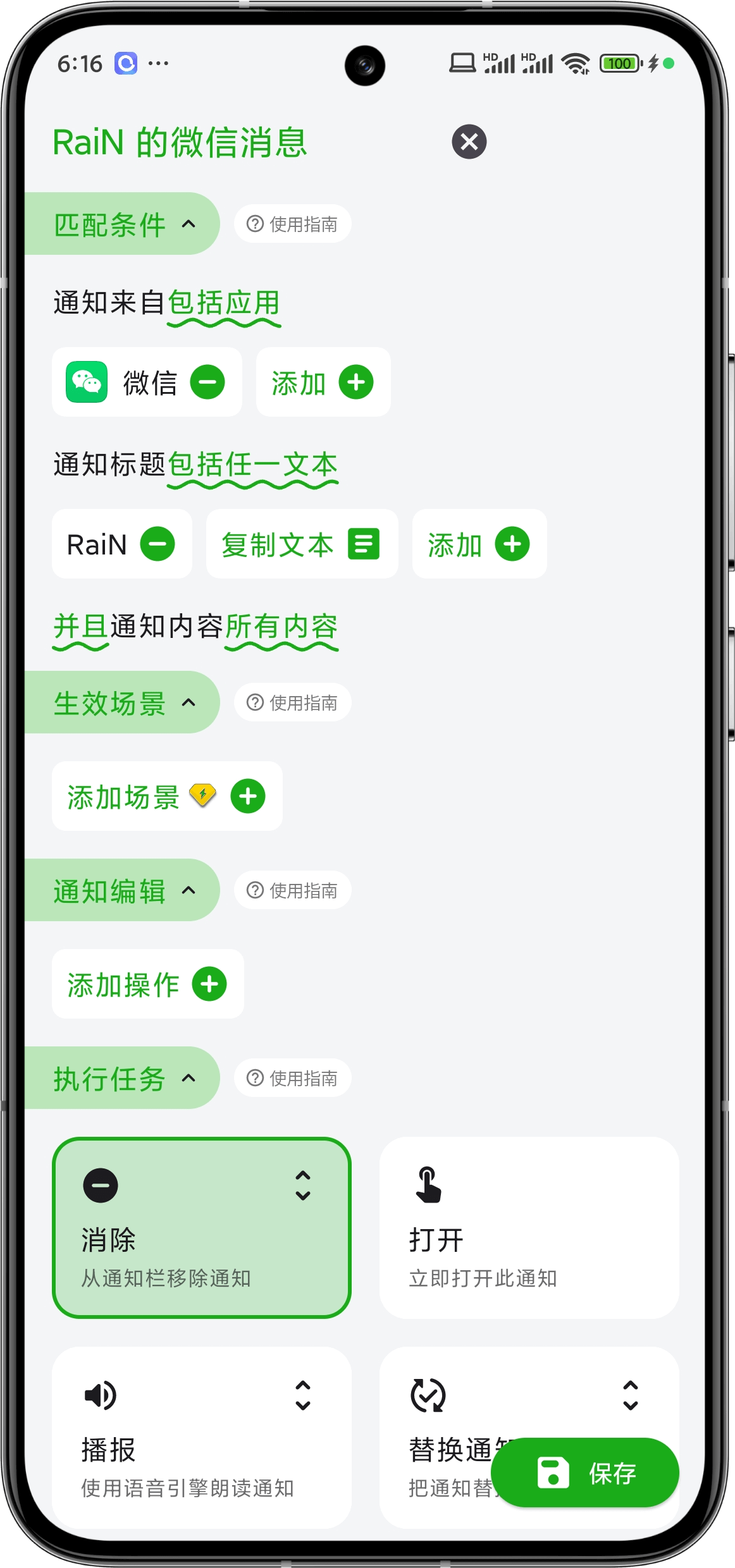
Display all messages from WeChat friend RaiN as edge-aligned bullet screens
- Enter Rule Editing Interface:
- Click the + button in the lower right corner to create a new rule.
- Set Matching Conditions:
Only WeChat notifications will trigger this rule
- Notification Source: Select WeChat.
Generally, WeChat notification titles contain the sender's WeChat nickname
- Notification Title: Contains any text RaiN
Match all WeChat messages from the friend
- Notification Content: Keep default for all content.
- Set Active Scenarios:
- Keep default, indicating matching all scenarios.
- Edit Notification Content:
- Keep default, indicating keeping the notification content unchanged.
- Set Execution Tasks:
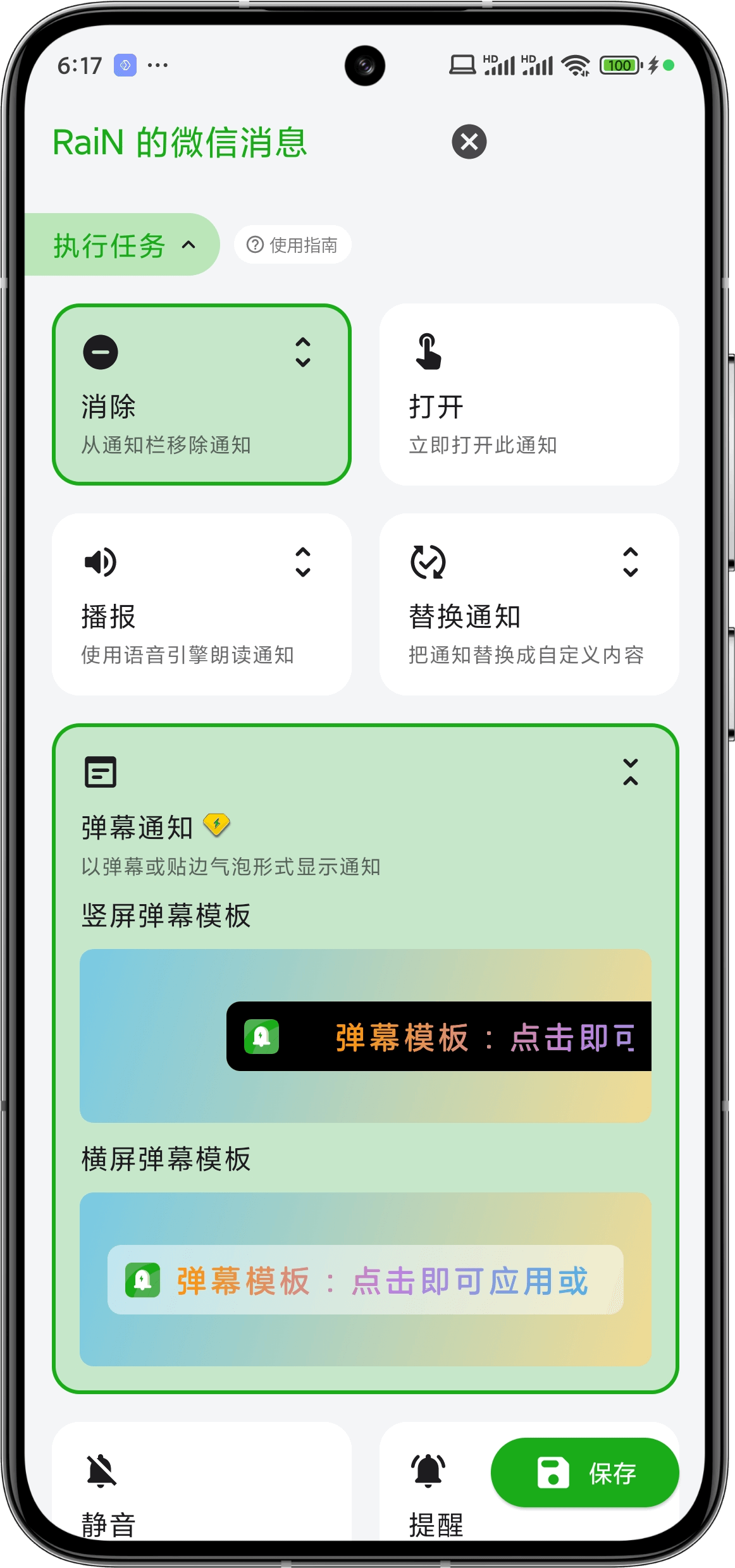
- Select Dismiss: No need to show in notification bar when displayed as bullet screen.
- Select Bullet Screen Notification: Display notification as bullet screen or edge bubble.
 |  |