Tutorial - Danmaku Usage
I. Overview
OneNotify App is a powerful notification management tool that supports displaying notifications as bullet screens (danmu) on your phone screen, particularly suitable for scenarios where you need to quickly check important notifications. The bullet screen feature can present notification content in the form of scrolling text or edge-aligned bubbles, effectively reducing interference with your current operations while ensuring important information isn't missed.
This tutorial will detail how to use OneNotify App's bullet screen feature, including setting up bullet screen rules, effect demonstrations, and important notes.
II. Bullet Screen Feature Setup Steps
Preparation
- Download and install OneNotify App.
- Register and log in to your account.
Create Bullet Screen Style
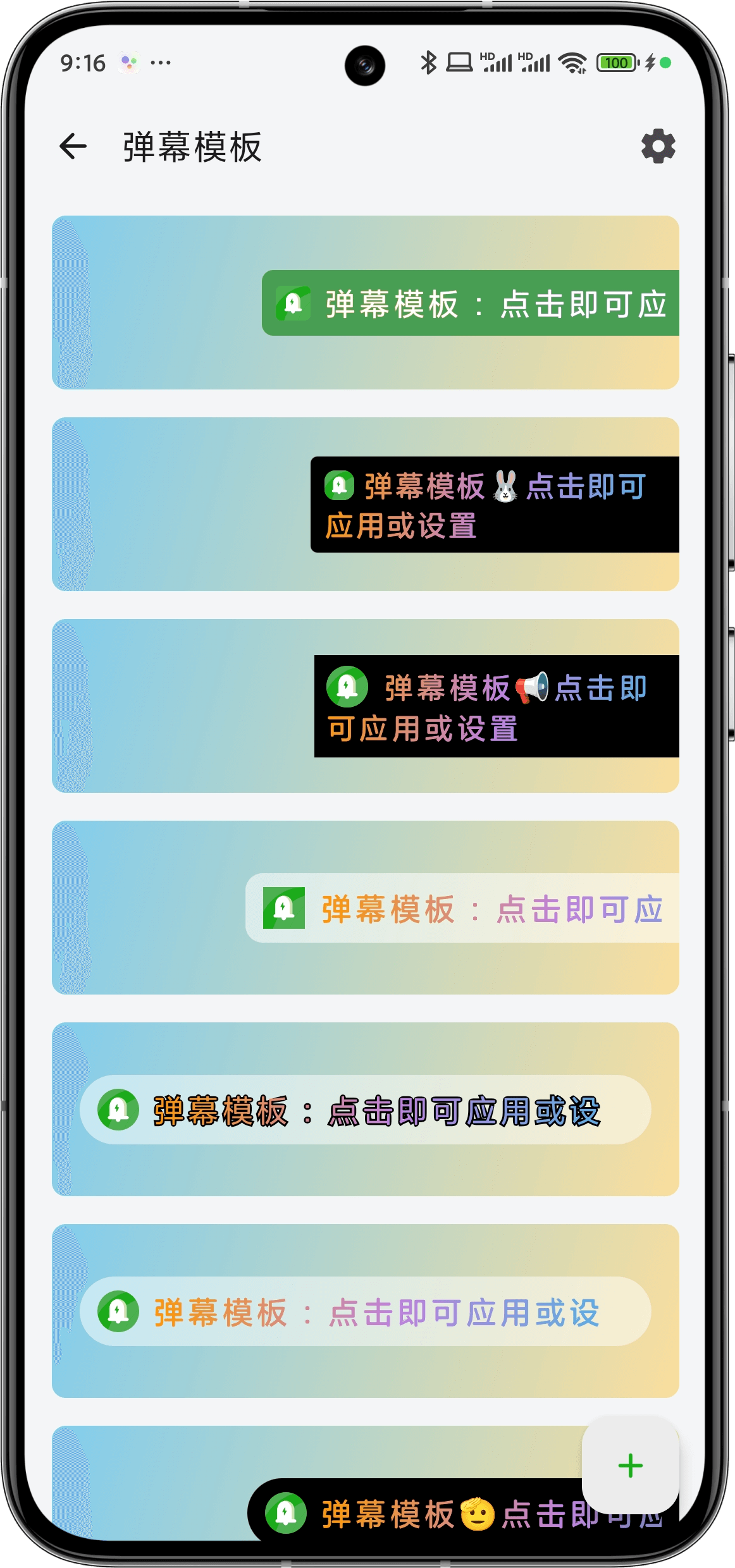
Create New Template: You can find the bullet screen template page from My → Settings → Bullet Screen Settings, click the "➕" button in the lower right corner to create a new template
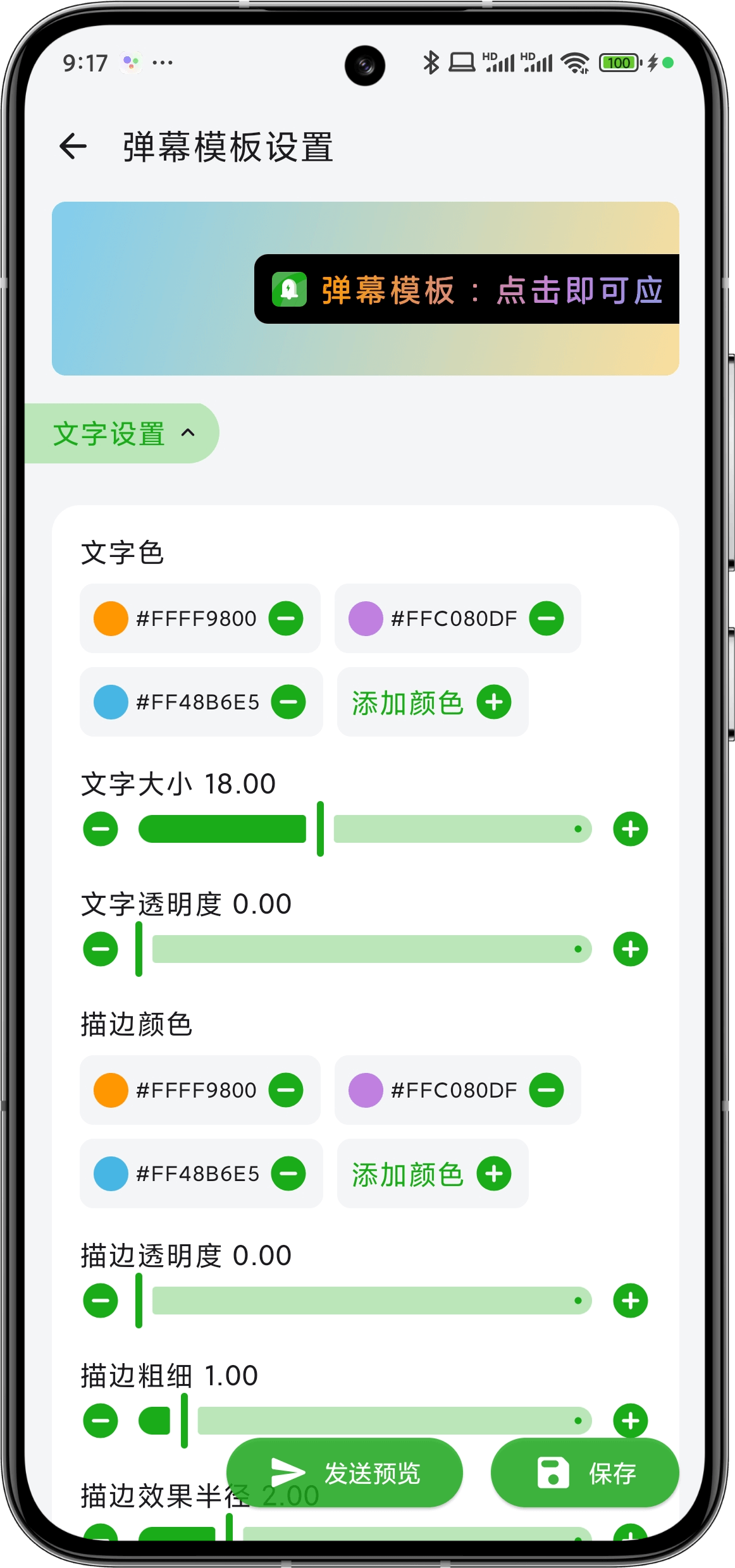
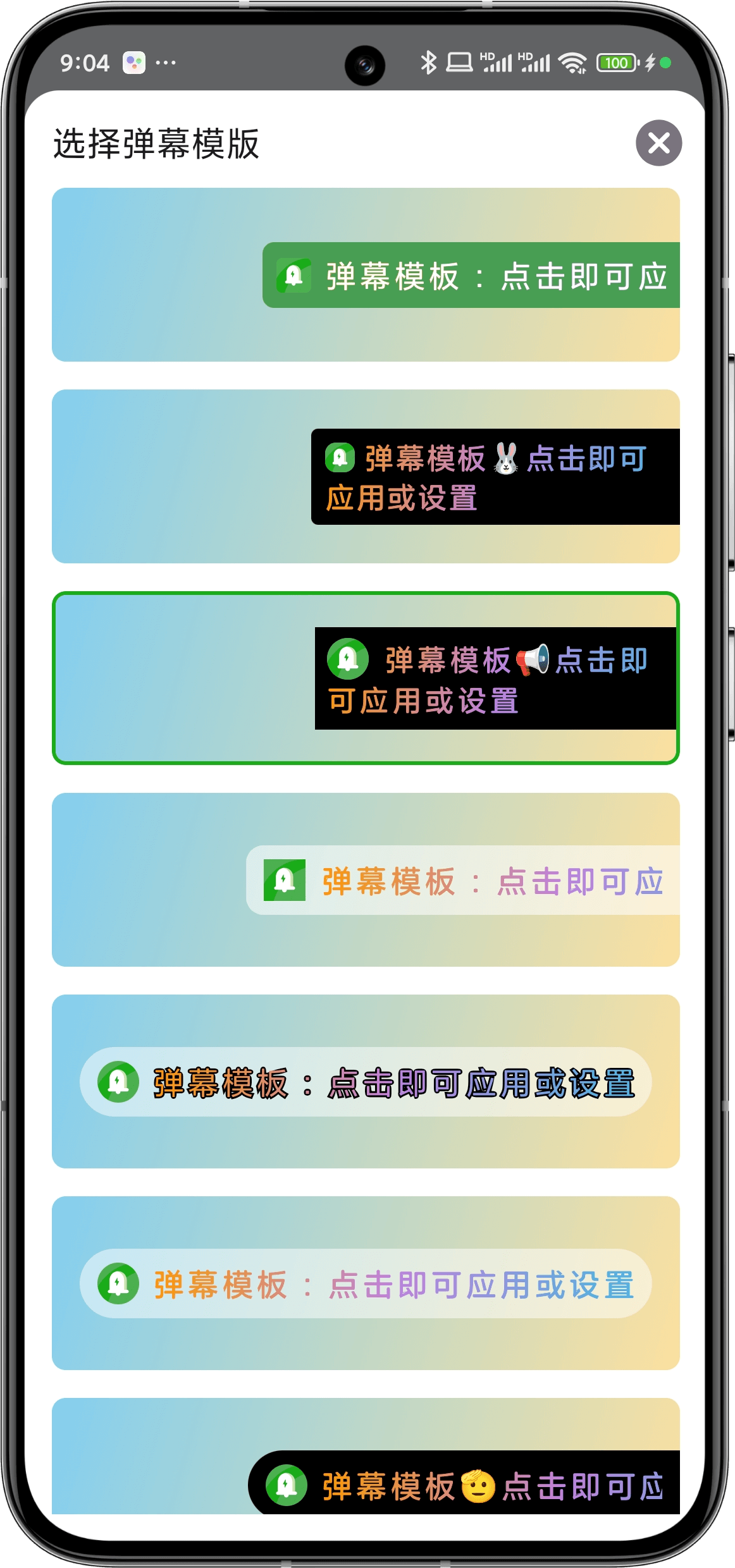
Template Settings: The bullet screen template page shows all your created bullet screen styles. Click on a single template to configure its detailed settings. You can customize style properties such as bullet screen type, text, stroke, color, background color, separators, etc.
Bullet Screen Types: OneNotify offers three types: Scrolling Bullet Screen, Fixed Edge Bubble, and Marquee Edge Bubble. You can click the preview button at the bottom right of the template settings page to preview the bullet screen/bubble effect at any time.
 |  |
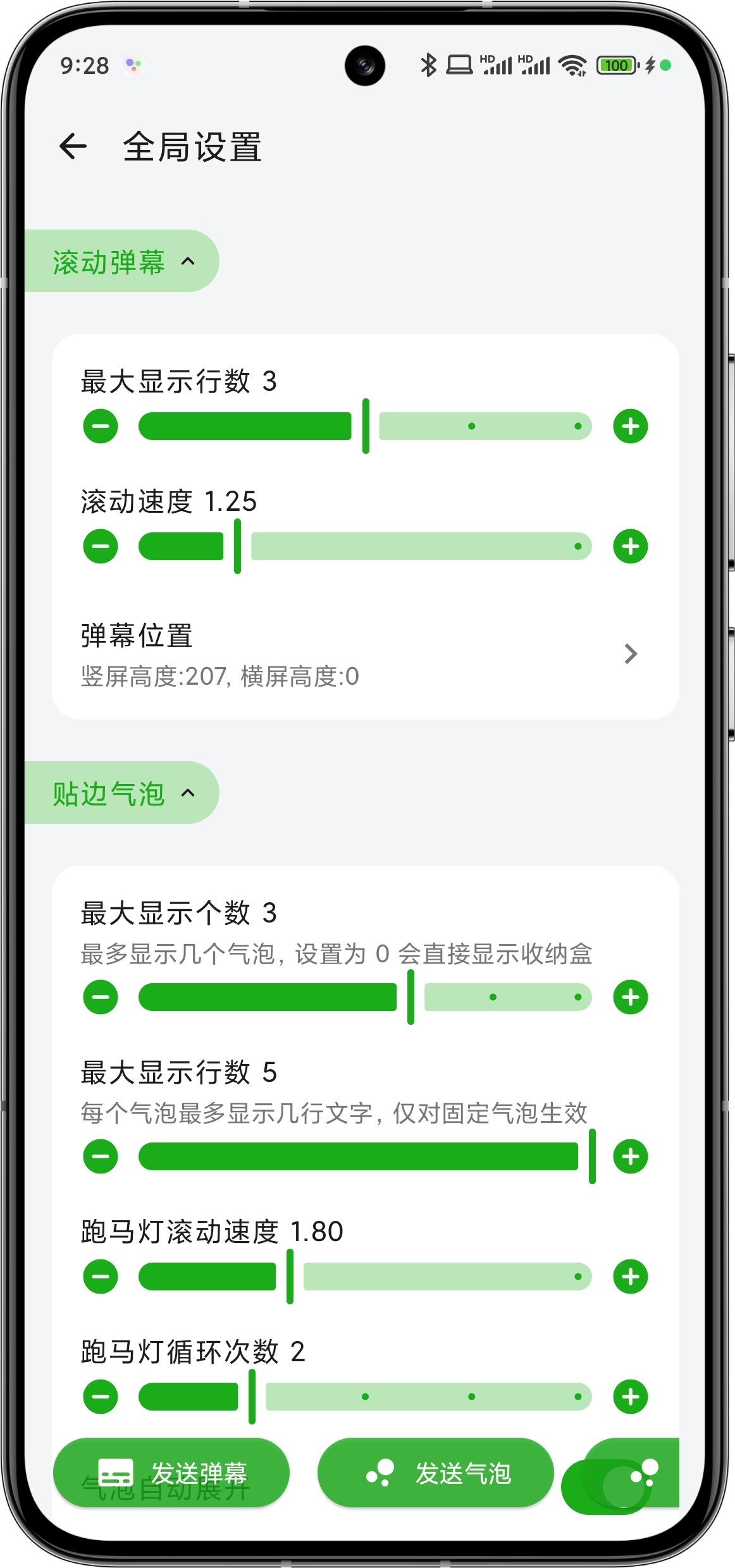
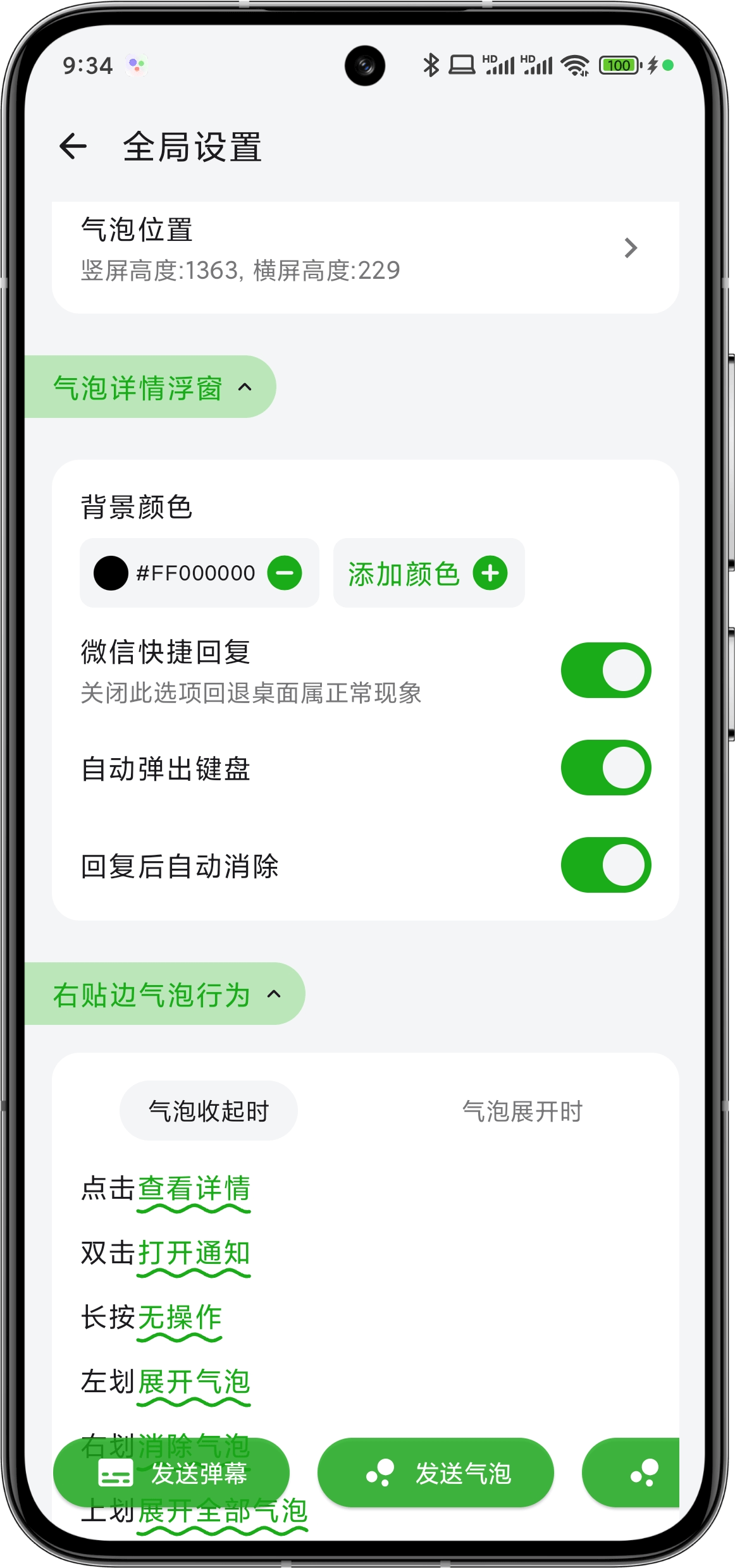
Click the "Settings" button in the upper right corner of the bullet screen template to enter the global property settings. These settings mainly configure the behavioral properties of the bullet screen, such as maximum number of lines for bullet screens, maximum number of bubbles/text lines, text scrolling speed for marquee bubbles, bullet screen/bubble display position, and other properties. Additionally, clicking on a bubble opens the bubble details page (default behavior, can be customized in bubble behavior), where you can enable WeChat quick reply functionality, allowing you to quickly reply to messages without opening WeChat.
 |  |
Set Trigger Rules
Step 1: Enter Rule Editing Interface
- Open OneNotify App, click the "+" button in the lower right corner to enter the rule editing interface.
Step 2: Set Matching Conditions
- Notification Source: Select the app that should trigger the bullet screen, such as WeChat.
- Notification Title: Enter keywords to match, such as friend's WeChat nickname "RaiN".
- Notification Content: Keep default to match all notification content.
Step 3: Set Active Scenarios
- Keep default settings, indicating the bullet screen feature triggers in all scenarios.
Step 4: Set Execution Tasks
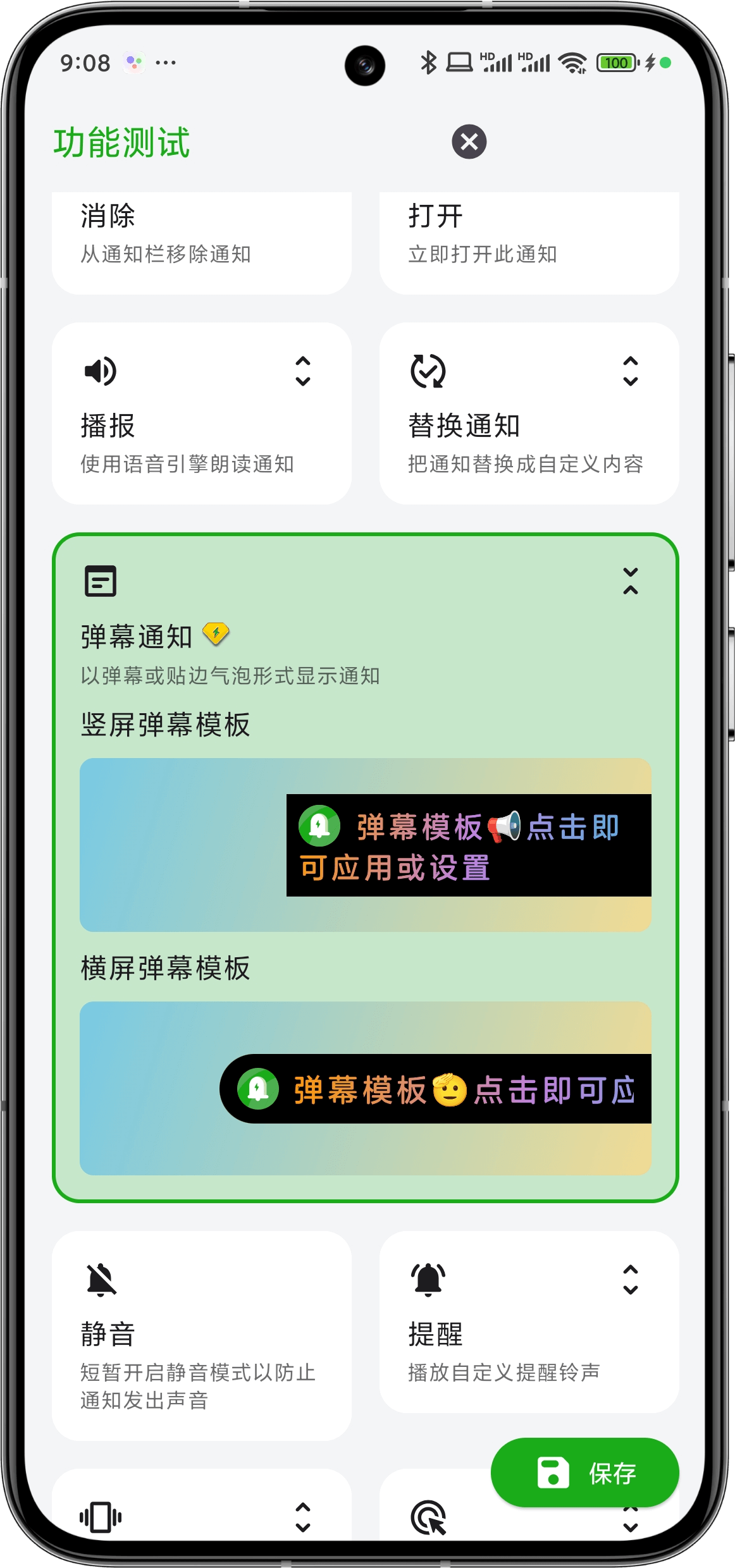
- Bullet Screen Notification: Select this option and choose the display form (scrolling or edge bubble), you can set different templates for portrait and landscape orientations.
Step 5: Save Rule
- After completing the settings, click the "Save" button to activate the rule.
 |  |
III. Effect Demonstration
1. Bullet Screen Display Forms
- Scrolling Bullet Screen: Notification content displays as scrolling text at the top or bottom of the screen.
- Edge Bubble: Notification content appears as a bubble fixed to the screen edge, click to expand for details, and quick reply to messages from the details page.
2. Example Scenarios
- Example 1
This is a Yuque video card, click the link to view: vp_output_1743820217527.mp4
- Example 2
This is a Yuque video card, click the link to view: Screenrecorder-2024-11-10-18-31-01-153.mp4
IV. Important Notes
- Device Compatibility The bullet screen feature may display differently on various devices. It's recommended to adjust settings based on actual circumstances.
- Notification Priority The bullet screen feature is suitable for important notifications. For large numbers of low-priority notifications, it's recommended to set filtering rules to avoid screen occupation by bullet screens.
V. Summary
OneNotify App's bullet screen feature provides users with an efficient and convenient way to handle notifications, particularly suitable for scenarios requiring quick viewing of important information. Through customized rules, users can flexibly set bullet screen trigger conditions and display forms to optimize their mobile notification experience.
For more features and usage tips, please refer to the Official Documentation.