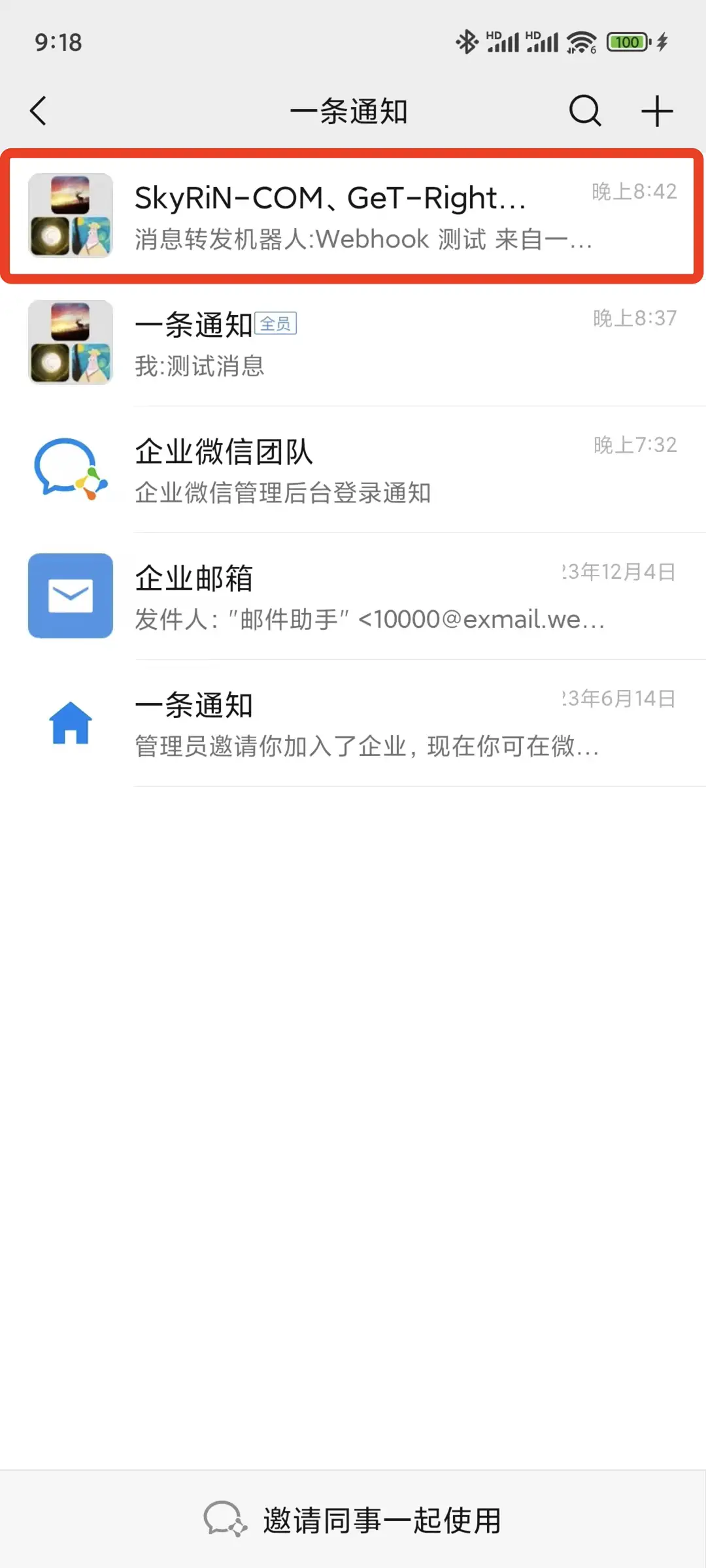
Tutorial - Webhook Forwarding Configuration
Feishu
⚠️ Desktop client is required for setup, as the web version and mobile app may not have the group bot settings entry
1. Create New Group Chat
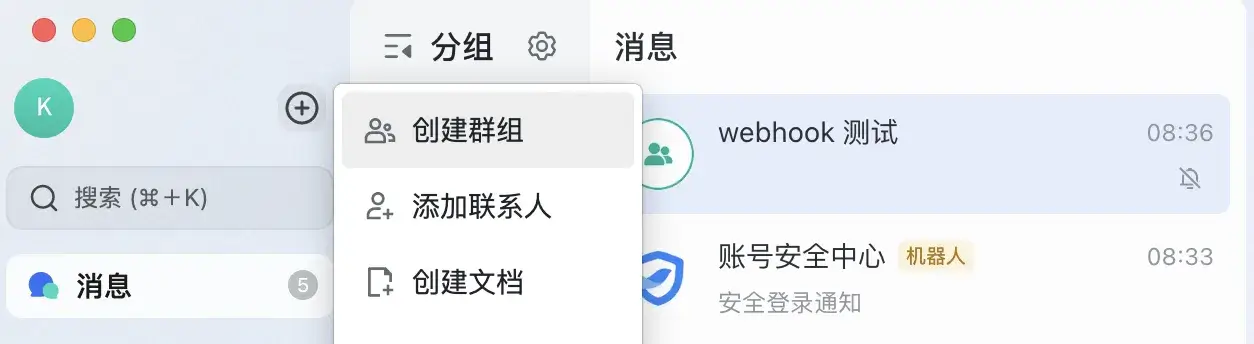
2. Add Group Bot
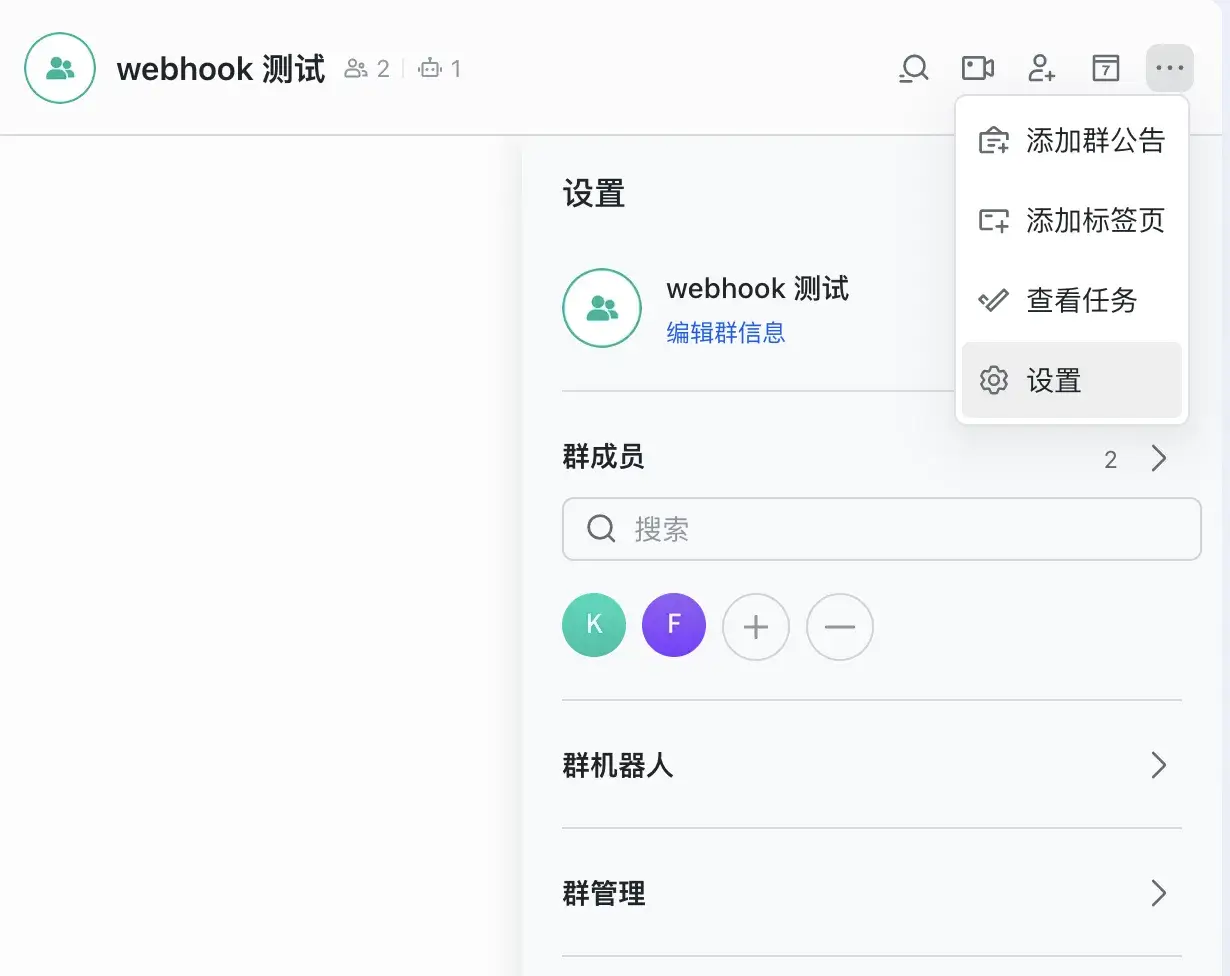
3. Create Bot and Copy Webhook URL
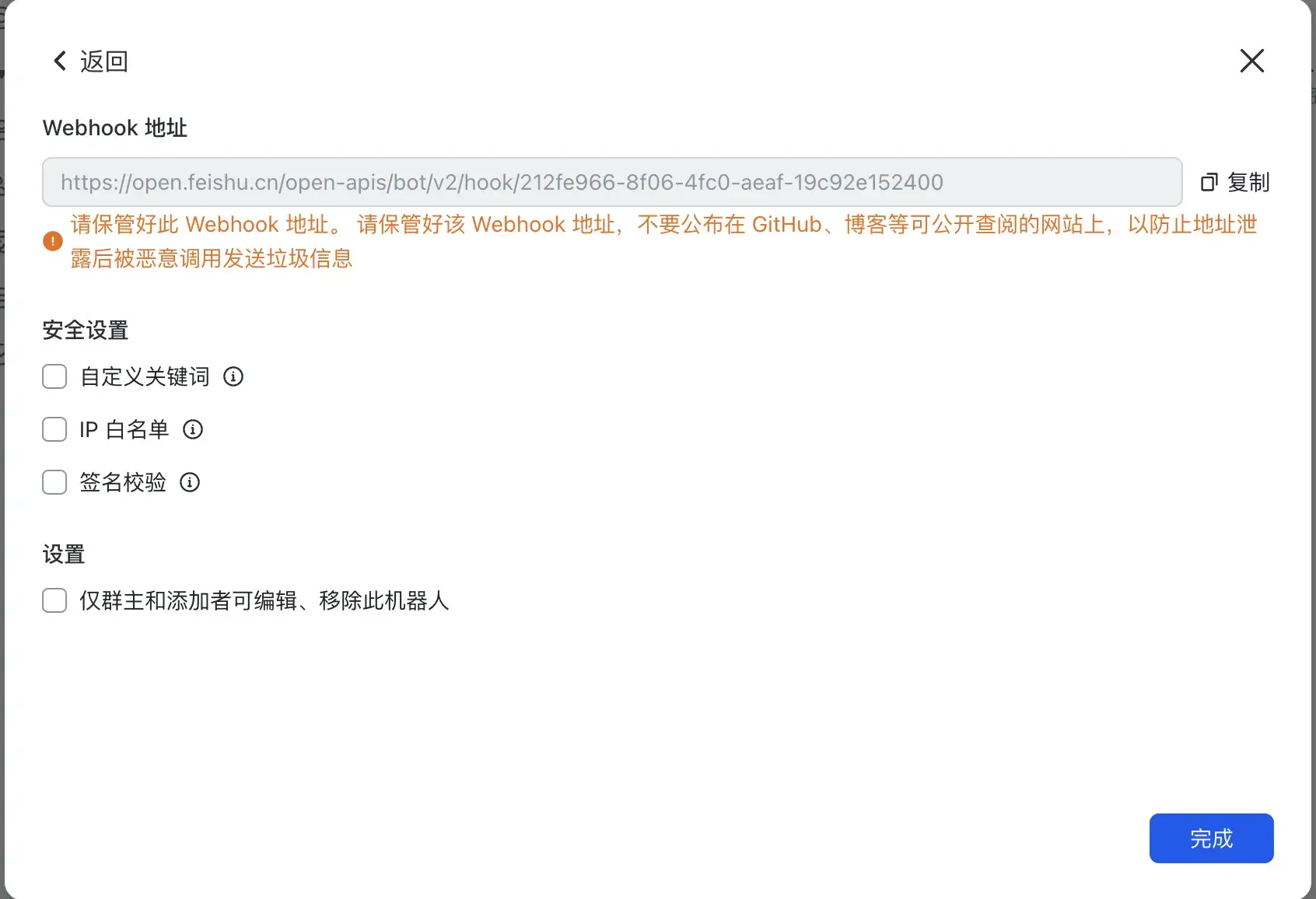
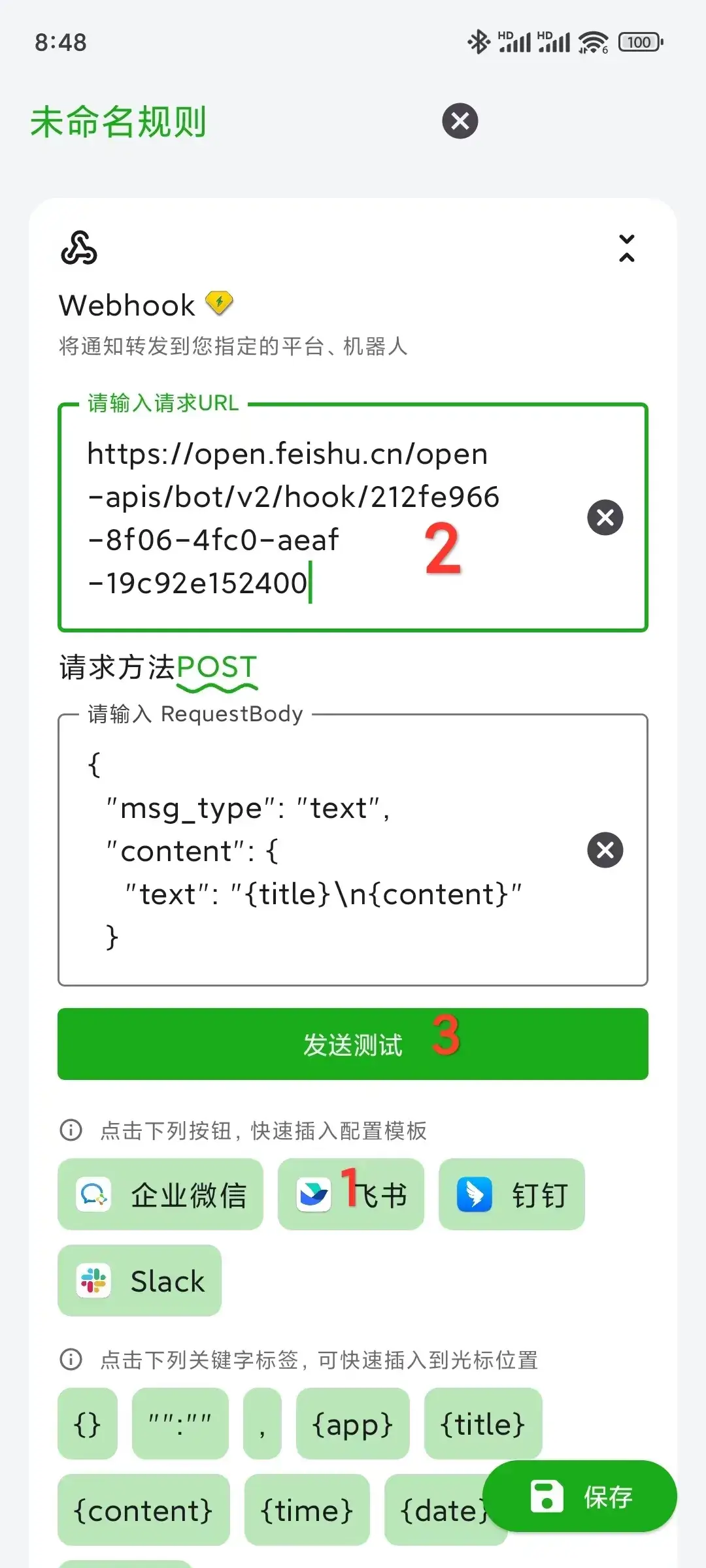
4. Configure and Test in OneNotify APP
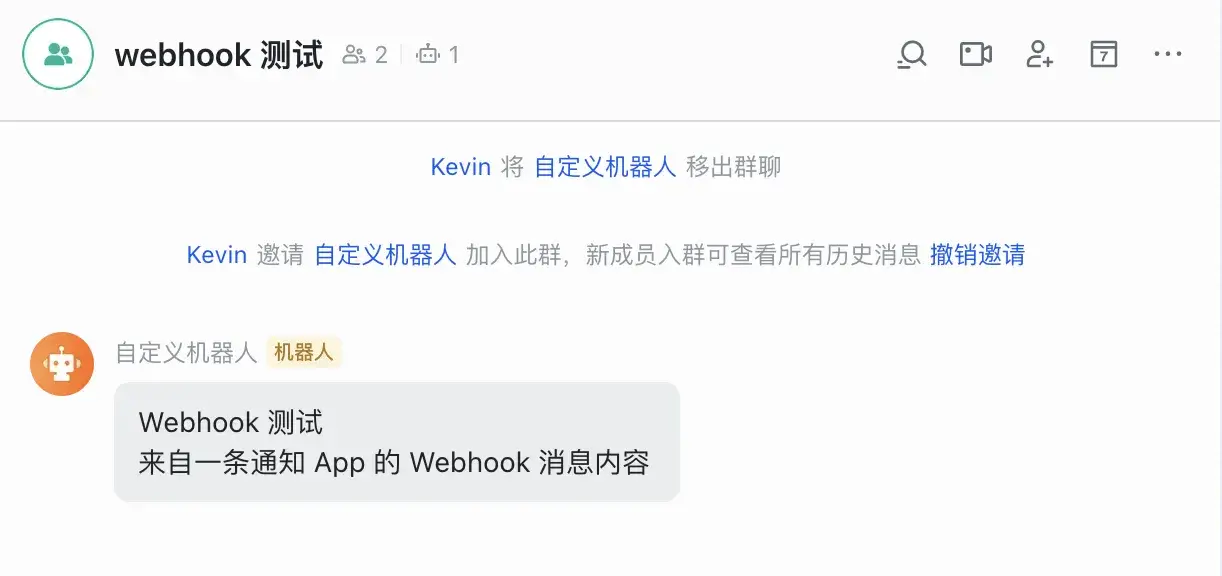
5. Receive Messages in Group
WeCom (Enterprise WeChat)
1. Download WeCom APP and Create Enterprise
It's recommended to log in to WeCom using personal WeChat account for easier group creation and bot addition. Enterprise name can be filled in arbitrarily, no verification needed

2. Create an Internal Enterprise Group Chat
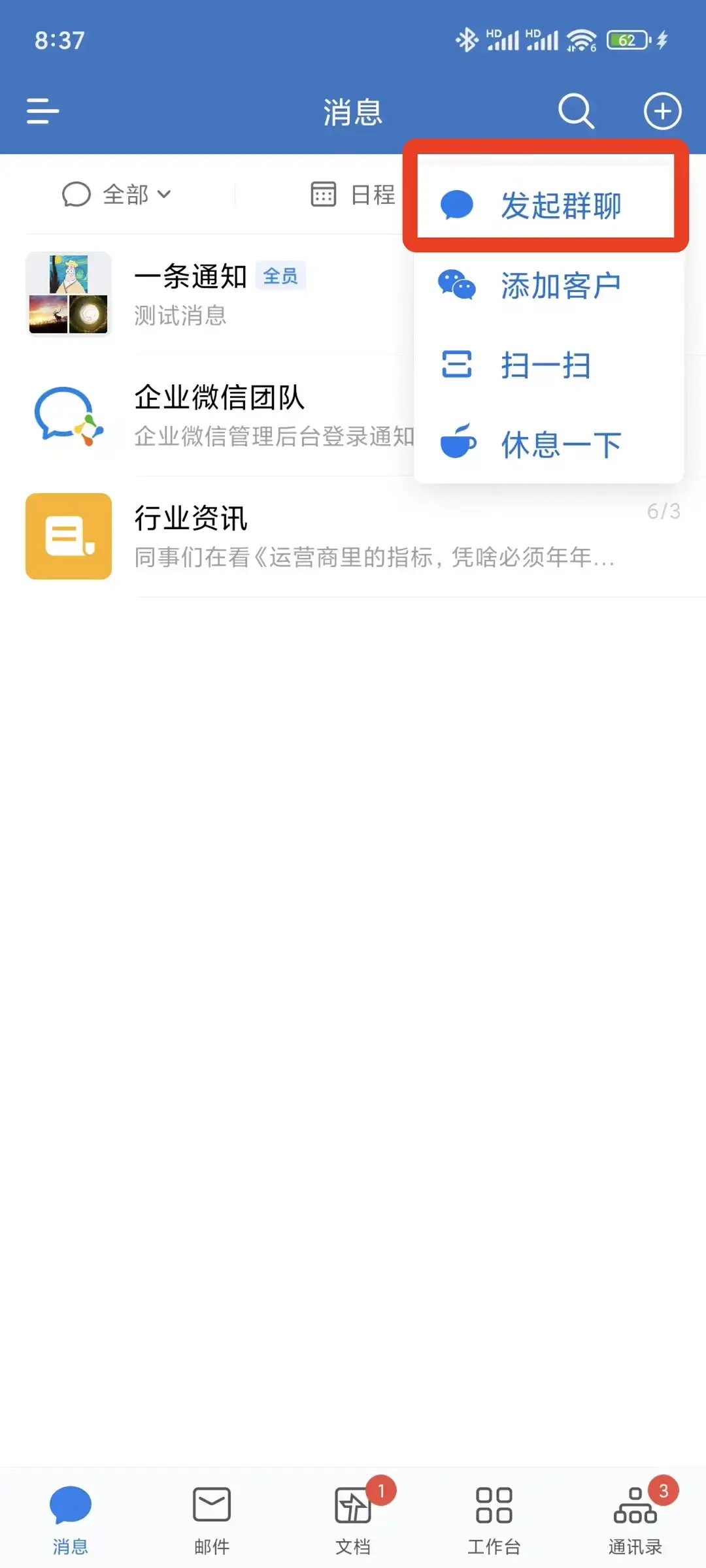
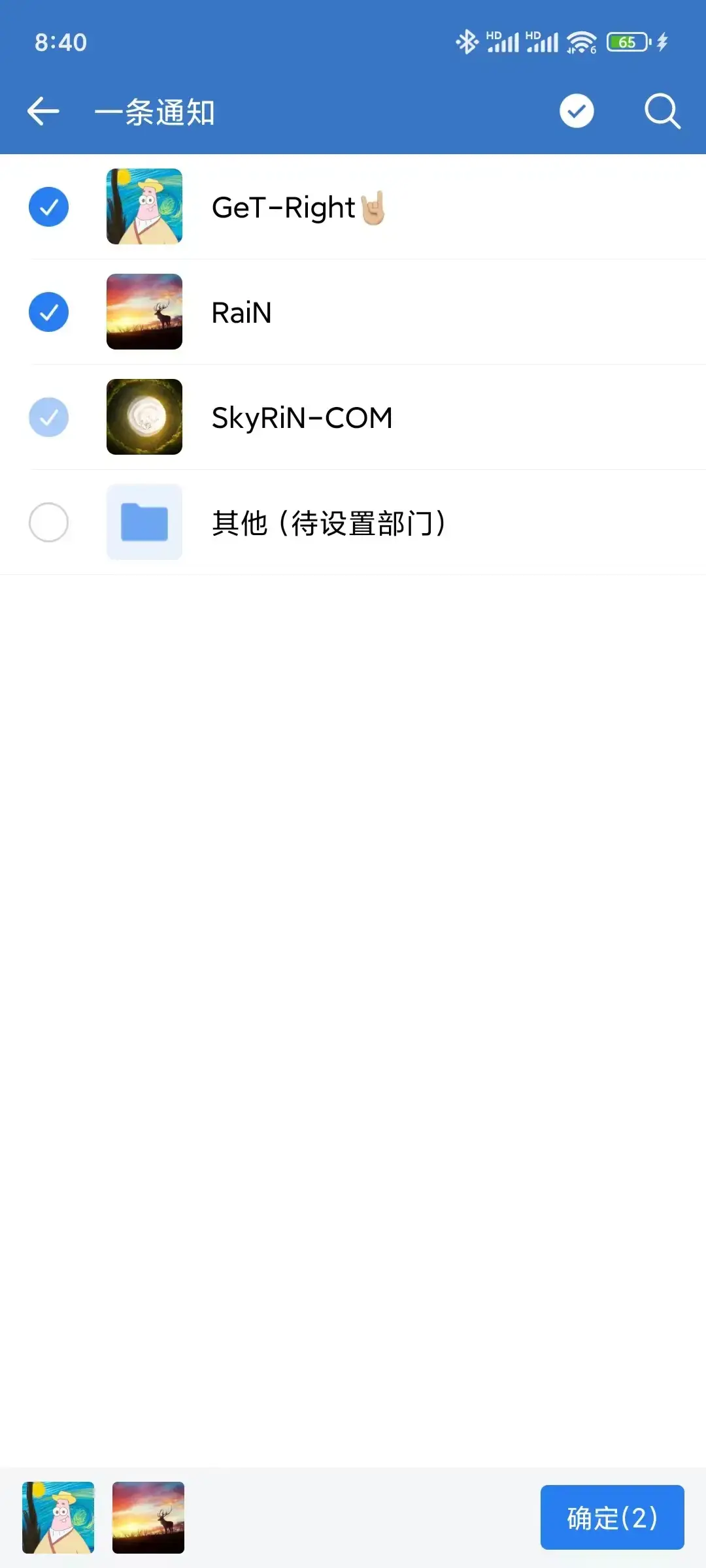
3. Select Enterprise Directory
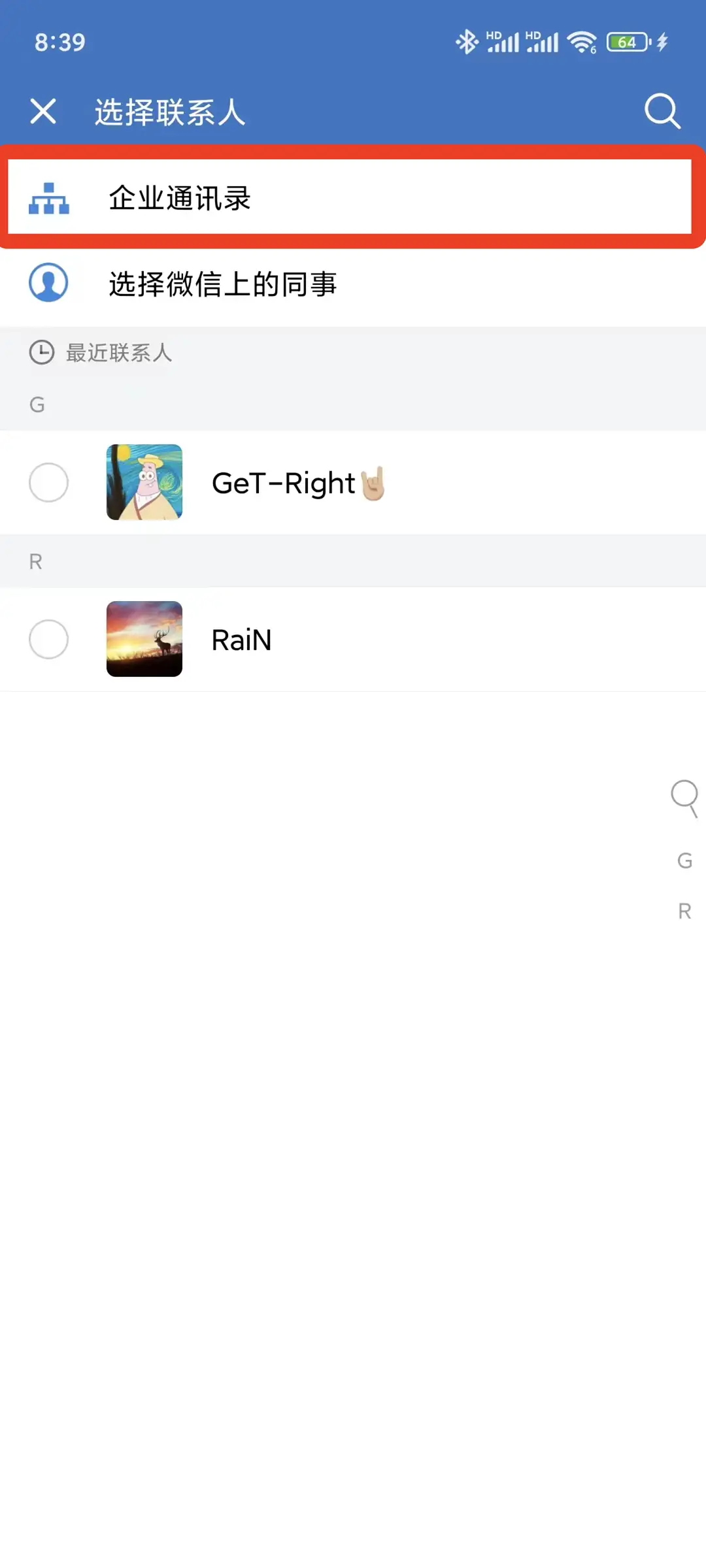
4. You need to invite at least two friends to join the group to create it. If the enterprise directory is empty here, you need to invite at least two friends to join the enterprise first
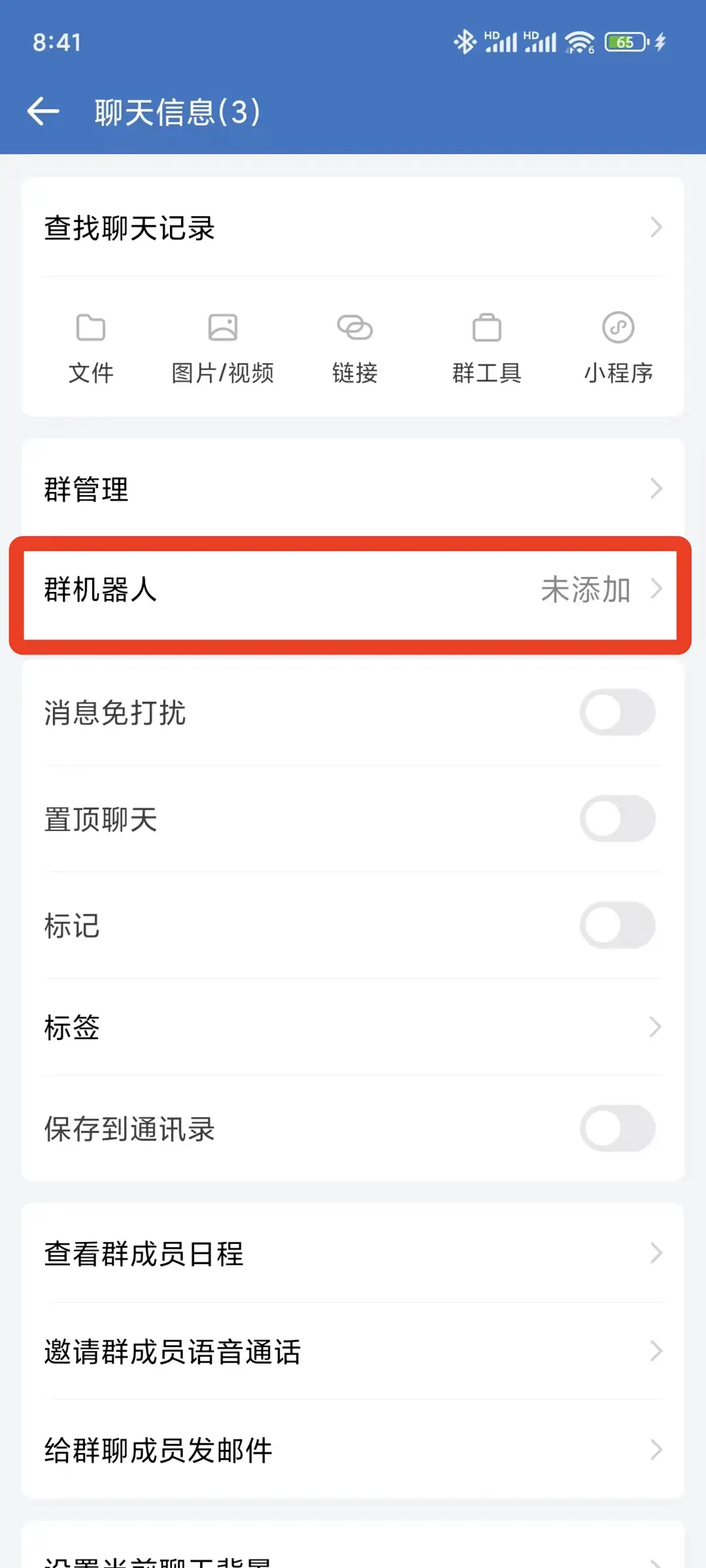
5. Then Add Bot in the Group
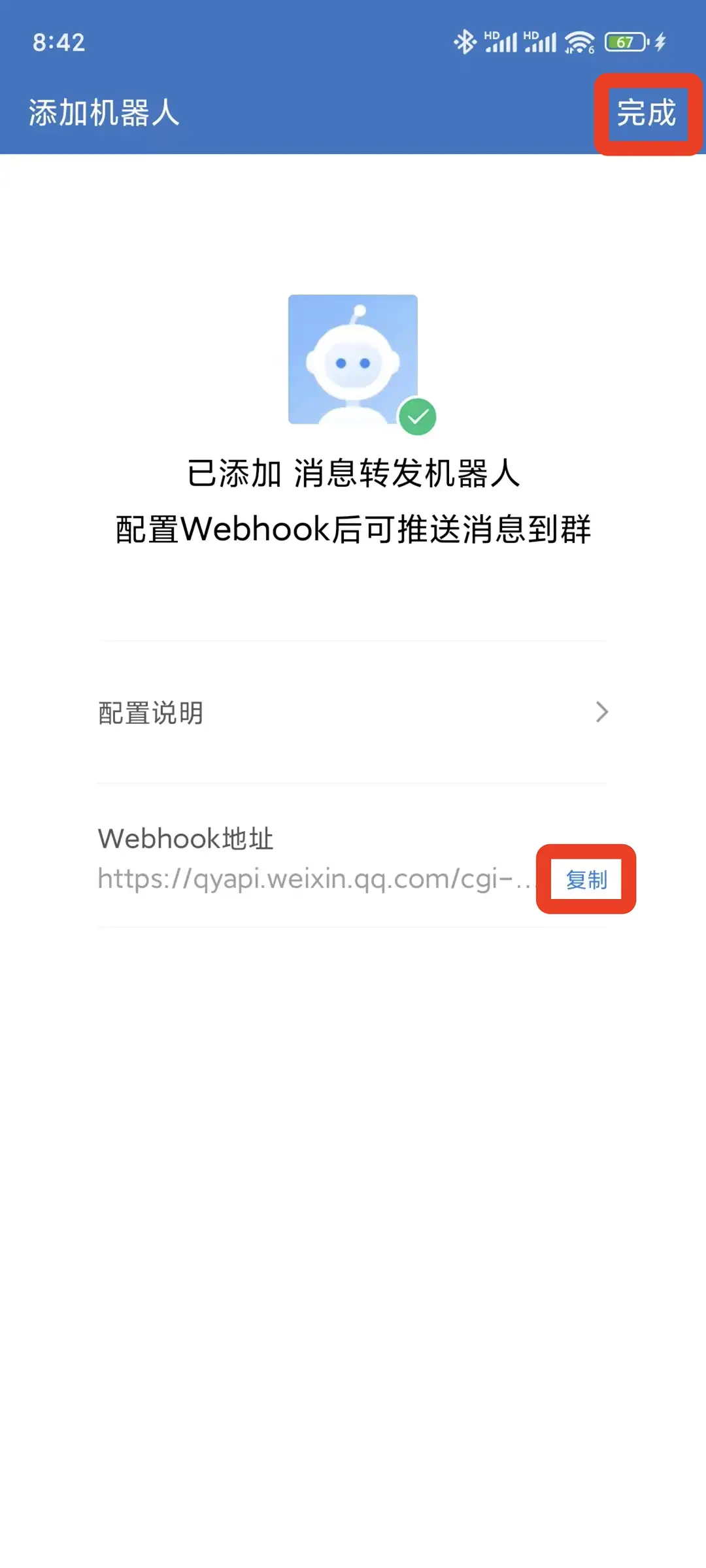
6. Copy Webhook URL and Click Complete to Save
7. Test in OneNotify's Webhook Feature, Select WeCom Template, Paste the Webhook URL Copied in Previous Step, Click Test
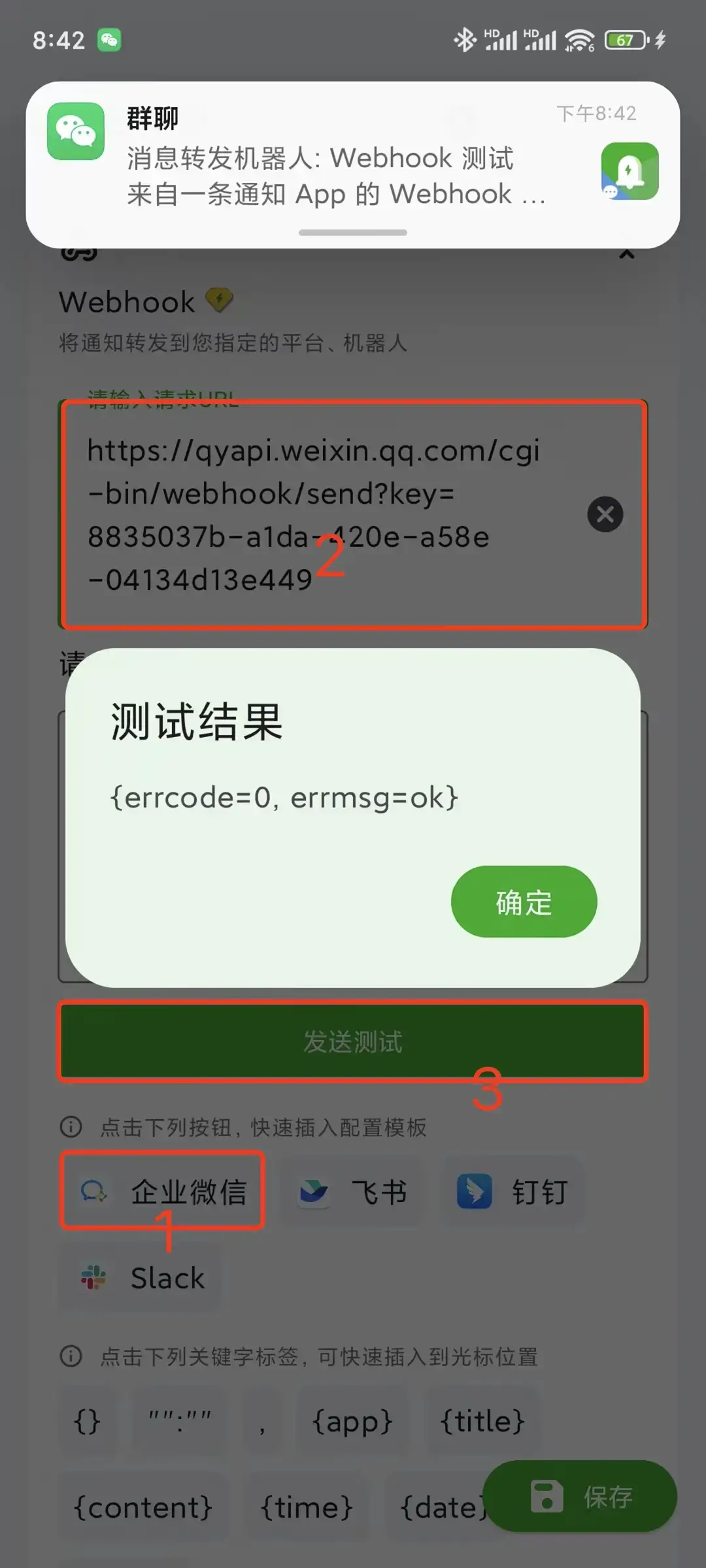
8. Normally, You Should See the Bot's Message in the WeCom Group
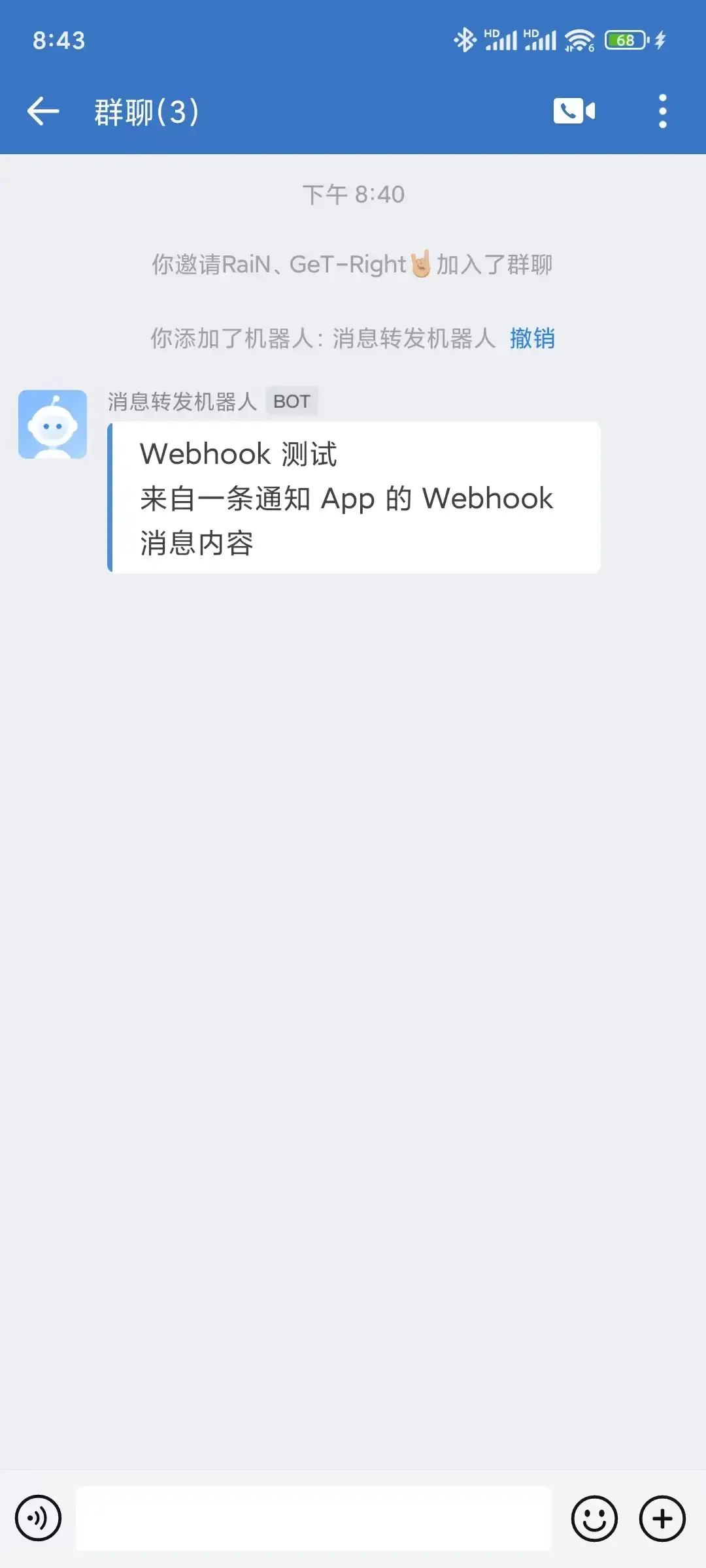
Personal WeChat
After setting up WeCom Webhook, you only need to enable the WeChat plugin feature in the WeCom admin panel to receive WeCom group messages in personal WeChat. Steps are as follows:
1. Log in to WeCom Admin Panel
Need to use PC browser to visit https://work.weixin.qq.com/wework_admin/frame#profile/wxPlugin
2. Find WeChat Plugin Page
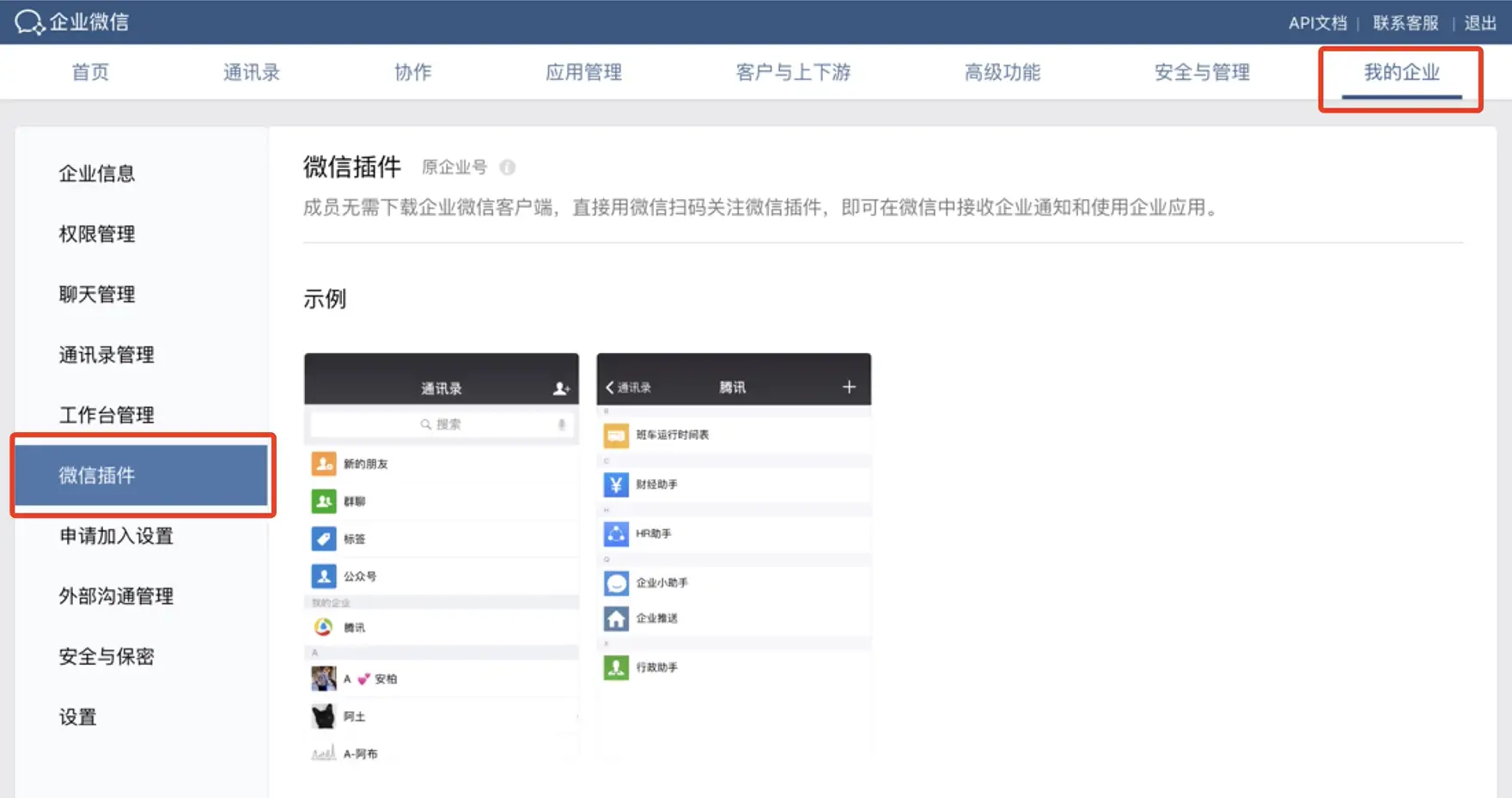
3. Scan the QR Code in the Invitation Follow Section with WeChat
Then you can see your created WeCom group in personal WeChat, and notifications forwarded by the bot will also be synchronized to this group